Introduction
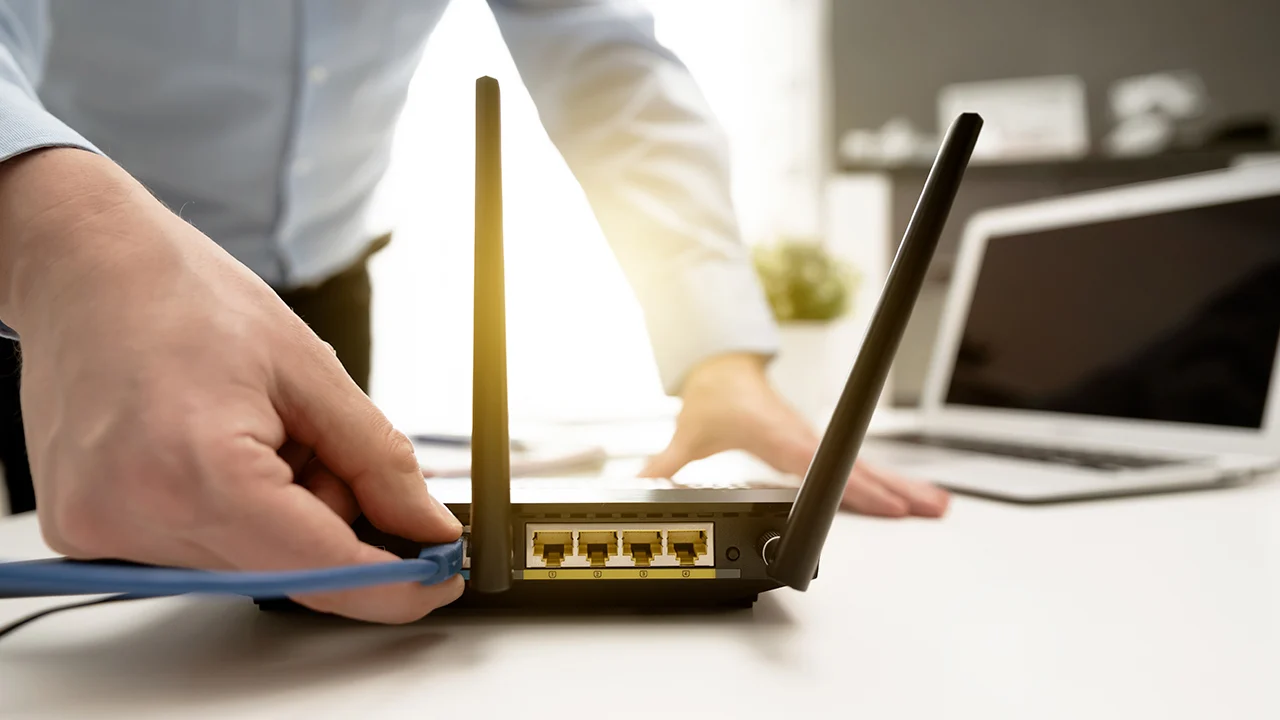
Slow Wi-Fi and dead zones frustrate households more than almost any other tech problem, especially as we’ve added streaming devices, smart home gadgets, and multiple simultaneous users to home networks originally designed for far lighter use. The good news is that most home Wi-Fi problems are fixable through better router placement, settings adjustments, and understanding what’s actually causing slowdowns rather than requiring expensive equipment upgrades. This guide walks through router placement fundamentals, frequency band basics, mesh systems versus extenders, common interference sources, and troubleshooting steps for persistent problems. The goal is helping you get reliable, fast Wi-Fi throughout your home without unnecessary spending.
Most Wi-Fi problems trace back to a handful of common, fixable causes rather than requiring a complete network overhaul or the most expensive router on the market.
Router Placement Fundamentals
Where you place your router dramatically affects coverage quality throughout your home, yet it’s routinely stuffed into a closet or corner where it happens to have an available outlet. Central placement, elevated off the floor, and away from thick walls dramatically improves signal distribution compared to a router hidden in a basement or corner.
Wi-Fi signals struggle to penetrate dense materials like brick, concrete, and metal, while passing more easily through drywall and wood. Avoid placing your router near large metal appliances, mirrors, or fish tanks, all of which interfere with signal propagation. If your router lives in a media cabinet, keep the cabinet doors open or choose a more open location to avoid unnecessarily blocking signal.
Understanding 2.4GHz vs 5GHz vs 6GHz
Modern routers broadcast on multiple frequency bands, each with different tradeoffs. The 2.4GHz band travels farther and penetrates walls better but offers slower maximum speeds and more interference from other devices sharing this crowded, widely-used frequency. The 5GHz band offers significantly faster speeds but shorter range and worse wall penetration. Newer 6GHz band (available on Wi-Fi 6E and newer routers) offers the fastest speeds with the least interference but the shortest range of all three.
For devices near the router doing bandwidth-intensive tasks like streaming or gaming, connect to 5GHz or 6GHz when available. For devices farther from the router or that don’t need high bandwidth (smart plugs, sensors), 2.4GHz’s better range and wall penetration makes more sense. Many modern routers use “band steering” to automatically assign devices to the optimal band, though manually connecting bandwidth-critical devices to 5GHz ensures optimal performance when it matters most.
Mesh Systems vs Wi-Fi Extenders
For homes with persistent dead zones, mesh Wi-Fi systems and traditional extenders both address coverage, but with meaningfully different results. Mesh systems use multiple coordinated access points that create a single, seamless network throughout your home, with devices automatically connecting to whichever node offers the strongest signal as you move around. This provides consistently better performance and eliminates the awkward network-switching required with older extender setups.
Traditional Wi-Fi extenders simply repeat your existing signal, often at reduced speed, and typically create a separate network name you must manually switch between as you move through your home. For homes larger than roughly 1,500 to 2,000 square feet, or with challenging layouts involving multiple floors or thick walls, a mesh system is worth the additional cost over a basic extender for the meaningfully better experience it provides.
Identifying and Reducing Interference
Beyond physical obstacles, other wireless devices can interfere with your Wi-Fi signal. Cordless phones, baby monitors, microwave ovens, and Bluetooth devices all operate on frequencies that can overlap with 2.4GHz Wi-Fi specifically. If you notice consistent slowdowns when a microwave runs, that’s a real, documented interference pattern rather than coincidence.
Neighboring Wi-Fi networks on the same channel also cause interference in densely populated areas like apartment buildings. Most routers can be manually set to a less congested channel, or set to automatically select the best available channel, reducing this competition-based slowdown. Free network analyzer apps let you see which channels are most crowded in your specific location before manually selecting a quieter one.
Securing Your Network Properly
An unsecured or weakly secured network invites unauthorized users who slow your connection and pose security risks to your connected devices and data. Use WPA3 encryption if your router supports it, or WPA2 at minimum—never leave a network open or using outdated WEP encryption, which is trivially breakable with widely available tools.
Change default router admin passwords immediately after setup, since default credentials for common router models are publicly documented and searchable online. Regularly update your router’s firmware, since manufacturers release patches addressing security vulnerabilities discovered after release—many modern routers can be set to update automatically, removing the need to check manually.
Managing Bandwidth for Multiple Users and Devices
Modern households often have dozens of connected devices simultaneously—phones, laptops, smart TVs, streaming devices, smart speakers, and various smart home gadgets all competing for bandwidth. Quality of Service (QoS) settings, available on most modern routers, let you prioritize bandwidth for specific activities like video calls or gaming over less time-sensitive background tasks like automatic downloads or backups.
If your household regularly experiences slowdowns during peak usage times (everyone streaming simultaneously in the evening, for instance), this is often a genuine bandwidth capacity issue rather than a Wi-Fi configuration problem, and may indicate it’s time to consider a higher-speed internet plan from your provider rather than further network tweaking.
Guest networks, available on most modern routers, deserve setup even in single-family homes. Separating visitor devices and smart home gadgets of uncertain security onto a guest network isolates them from your primary devices, containing potential security issues to a segment of the network with limited access to your personal computers and files. This small setup step, often skipped entirely by home users, provides meaningful security benefit for very little ongoing effort once configured.
Ethernet cabling, though less glamorous than wireless upgrades, remains the most reliable connection option for stationary, bandwidth-demanding devices like desktop computers, streaming boxes, and gaming consoles. Running a wired connection to your most bandwidth-critical device removes it from Wi-Fi contention entirely, often solving persistent problems that no amount of wireless troubleshooting can fully address for that specific device.
When to Upgrade Your Router
Routers older than five years often lack support for current Wi-Fi standards and security protocols, and may struggle with the number of connected devices in a modern smart home. If you’re experiencing persistent problems despite good placement and settings, and your router predates current Wi-Fi 6 standards, upgrading to current hardware often resolves issues that no amount of settings tweaking on old hardware can fix.
Testing and Monitoring Your Network Performance
Before assuming a Wi-Fi problem requires new equipment, run speed tests at different times of day and in different rooms to understand where and when problems actually occur. A consistent slowdown throughout the day at a specific location points to a coverage or interference problem in that spot, while slowdowns only during peak evening hours often indicate an internet plan capacity issue rather than anything wrong with your home network itself.
Many router apps now include built-in network mapping and device management tools that show exactly which devices are connected, how much bandwidth each is using, and signal strength throughout your home. Reviewing this data periodically helps you understand your actual network usage patterns and identify unexpected devices or unusually heavy bandwidth consumers you might not otherwise notice, including potentially unauthorized users who’ve guessed a weak password.
If problems persist despite good placement, updated firmware, and appropriate channel selection, contacting your internet service provider to verify your actual delivered speed matches what you’re paying for rules out a provider-side issue. A technician visit or line quality check occasionally reveals a physical connection problem outside your home network entirely, which no amount of router optimization can fix.
Conclusion
Reliable home Wi-Fi comes from thoughtful router placement, understanding frequency band tradeoffs, addressing interference sources, and choosing the right coverage solution (mesh versus extender) for your home’s size and layout. Most persistent Wi-Fi problems are solvable through these fundamentals rather than requiring the most expensive router available. Combined with proper security settings, these adjustments deliver the fast, reliable connection modern households depend on throughout every room.
FAQs
1. Do I need a mesh system for a small apartment?
Usually not. A single quality router placed centrally typically covers apartments under 1,500 square feet adequately. Mesh systems shine in larger homes or those with challenging layouts.
2. How often should I restart my router?
Occasional restarts (monthly) can clear minor glitches, though modern routers rarely need frequent restarts. Persistent problems requiring frequent restarts suggest a deeper issue worth investigating.
3. Does my internet plan speed matter if I have Wi-Fi problems?
Yes, distinctly. Wi-Fi issues affect distribution within your home; your internet plan determines total available bandwidth. Both matter, but they’re separate problems with separate solutions.
4. Is it worth buying the most expensive router?
Not necessarily. Mid-range routers from reputable brands handle most home needs well. The most expensive options offer marginal benefits unless you have unusual bandwidth demands or a very large home.
5. Can too many devices slow down my Wi-Fi?
Yes, particularly on older routers with limited processing capacity for managing many simultaneous connections. Modern routers handle dozens of devices well; older ones may struggle.