Introduction
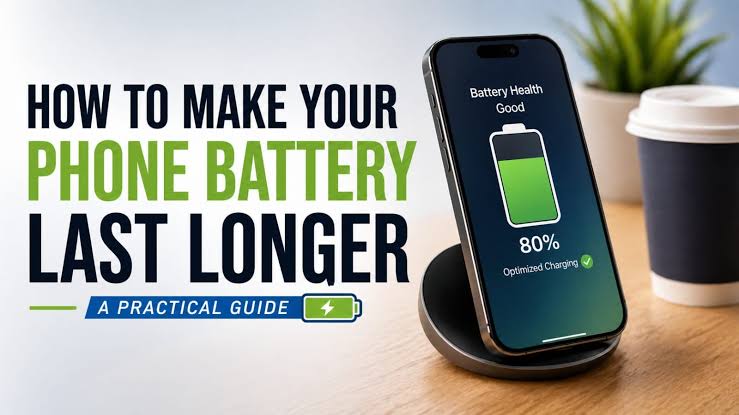
Few things are more frustrating than watching your phone battery drain hours before your day ends. Modern smartphones pack powerful processors, bright displays, and constant connectivity into a device you carry everywhere, and all of that capability demands real power. The good news is that battery life is heavily influenced by settings and habits, not just hardware limitations. This guide walks through the biggest battery drains, settings adjustments that make a real difference, charging habits that protect long-term battery health, and troubleshooting steps when battery life suddenly gets worse. The goal is helping you get through a full day on a single charge without carrying a power bank everywhere you go.
Battery optimization is about understanding what’s actually consuming power on your specific phone and addressing those specific drains rather than applying generic advice that might not apply to your usage pattern.
Screen Brightness and Timeout Settings
The display is typically the single biggest battery consumer on any smartphone, especially with bright, large, high-refresh-rate screens common on modern devices. Enable auto-brightness so your screen adjusts to ambient light rather than staying at a fixed high brightness regardless of your environment. Manually reducing brightness even slightly below what feels necessary saves meaningful battery over a full day of use.
Shorten your screen timeout setting from the default (often 2 minutes) to 30 seconds or 1 minute. This small change means your screen isn’t staying lit unnecessarily every time you check something quickly and set the phone down. If your phone has a high refresh rate display (90Hz, 120Hz), consider whether you actually notice the smoothness benefit enough to justify the battery cost—many phones let you drop to a standard 60Hz refresh rate for meaningfully better battery life.
Background App Activity
Apps running in the background, checking for updates, refreshing content, and tracking location all drain battery even when you’re not actively using them. Review which apps have background app refresh enabled and disable it for apps where real-time updates don’t matter to you. Social media and news apps are common offenders, constantly checking for new content even when closed.
Location services are particularly battery-intensive when set to “always allow” for apps that don’t need constant location tracking. Review your location permissions and switch most apps to “while using” rather than “always,” reserving always-on location access only for apps where it’s genuinely necessary, like navigation or fitness tracking during actual use.
Connectivity Settings That Drain Battery
Constantly searching for Wi-Fi networks, Bluetooth devices, or maintaining a weak cellular signal all consume power searching for and maintaining connections. In areas with poor cellular coverage, your phone works harder to maintain a signal, draining battery faster than in areas with strong reception. If you’re in a persistently weak-signal area, enabling Wi-Fi calling when available reduces this drain significantly.
Bluetooth left on constantly, searching for devices to connect to, uses more battery than most users realize. If you’re not actively using Bluetooth accessories, turning it off between uses saves meaningful battery over a full day. Similarly, disable Wi-Fi when you know you’ll be somewhere without a network for an extended period, preventing constant background scanning for available networks.
Notification and Widget Management
Every notification wakes your screen briefly and triggers background processing to display it. Reducing unnecessary notifications, particularly from apps you don’t need real-time alerts from, reduces both battery drain and the psychological drain of constant interruptions. Review your notification settings app by app rather than accepting default settings that enable notifications for everything.
Home screen widgets that update frequently, particularly weather, stock, or news widgets, consume background battery to stay current. Limiting the number of active widgets, or choosing ones that update less frequently, reduces this ongoing drain without meaningfully impacting your daily experience.
Charging Habits for Long-Term Battery Health
Lithium-ion batteries, used in virtually all modern smartphones, degrade based on charge cycles and heat exposure rather than simply calendar age. Avoid letting your battery repeatedly drain to zero percent before charging—shallow, frequent charges are gentler on battery chemistry than deep discharge cycles repeated over time. Similarly, avoid leaving your phone at 100 percent connected to a charger for extended periods when possible, since sustained high charge combined with heat accelerates degradation.
Heat is genuinely damaging to battery longevity. Avoid charging your phone in direct sunlight, inside a hot car, or under a pillow where heat builds up. Remove thick cases while charging if your phone tends to run warm, allowing better heat dissipation during the charging process when the battery generates the most heat.
Using Battery Saver and Low Power Modes
Most smartphones include a battery saver mode that reduces background activity, limits visual effects, and sometimes reduces processor performance to extend remaining battery life. Enable this proactively when you know you’ll be away from a charger for an extended period, rather than waiting until your battery is critically low. Some phones let you customize exactly which features get limited in battery saver mode, letting you fine-tune the tradeoff between battery life and functionality.
Troubleshooting Sudden Battery Drain
If battery life suddenly worsens without a clear cause, check your battery usage breakdown in settings to identify which specific app is consuming unusual amounts of power. A single misbehaving app, often after a buggy update, can drain battery dramatically faster than normal. Restarting your phone sometimes resolves temporary software glitches causing excessive battery drain.
If a specific app consistently shows unusually high battery usage, check for available updates, or consider whether you actually need that app installed. Uninstalling and reinstalling a problematic app sometimes resolves persistent battery drain issues that simple restarts don’t fix.
Software updates to your phone’s operating system occasionally introduce battery regressions alongside their intended fixes and features, which is a known, documented pattern across both major mobile platforms. If battery life noticeably worsens right after a system update, check online forums and community reports before assuming your specific device or battery is failing—sometimes a subsequent patch resolves a widely reported regression within weeks, and waiting is preferable to an unnecessary battery replacement.
Third-party battery health apps can provide additional diagnostic detail beyond what’s built into your phone’s native settings, showing charge cycle counts and estimated maximum capacity compared to when the battery was new. This information helps you decide objectively whether declining battery life reflects genuine hardware aging worth addressing through a professional battery replacement service, or simply reflects software and daily usage habits that a handful of adjustable settings can still meaningfully improve without any hardware service being necessary at all.
App-Specific Battery Drains Worth Investigating
Navigation apps used continuously during long drives are among the most battery-intensive activities on any smartphone, combining constant GPS tracking, screen-on time, and cellular data use simultaneously. If you frequently use navigation, connecting to a car charger during use prevents battery anxiety and protects against arriving at your destination with a critically low charge.
Social media apps with auto-playing video, constant background refresh, and heavy animation effects rank among the worst everyday battery drains for typical users. Streaming video and music apps, while necessary for their function, benefit from downloading content over Wi-Fi for offline playback when possible, since offline playback uses meaningfully less battery than continuous streaming, particularly over cellular data where the radio works harder to maintain a stable connection.
Camera apps, especially when recording video, are surprisingly battery-intensive due to the combination of sensor activity, image processing, and bright screen use simultaneously. If you’re taking extended video, especially in 4K or at high frame rates, expect noticeably faster battery drain than typical phone use, and plan charging accordingly around any extended photography or videography sessions.
Conclusion
Smartphone battery life responds well to thoughtful settings adjustments and charging habits rather than requiring you to buy a new phone or carry a power bank everywhere. Managing screen brightness, background app activity, connectivity settings, and notifications addresses the biggest everyday drains. Combined with battery-friendly charging habits, these changes meaningfully extend both your daily battery life and your phone’s long-term battery health over years of ownership.
FAQs
1. Does closing apps in the background actually save battery?
Modern phones manage background apps efficiently already. Manually force-closing apps repeatedly can sometimes use more battery restarting them than leaving them properly suspended in the background.
2. Is fast charging bad for battery health?
Occasional fast charging is fine. Frequent fast charging generates more heat, which accelerates long-term degradation slightly compared to standard charging speeds, though the difference is modest for most users.
3. Should I turn my phone off overnight to save battery?
Not necessary for most users. Modern phones sleep efficiently overnight. The convenience of always-on access typically outweighs the minimal battery savings from powering off.
4. Why does my battery percentage drop suddenly?
This can indicate battery calibration issues or genuine battery aging. If it happens repeatedly and severely, a battery health check or replacement might be warranted.
5. Do battery cases actually help?
Yes, they provide genuine additional capacity for heavy users. Choose one from a reputable brand to avoid charging inconsistencies or heat issues from poorly made third-party batteries.